
There is nothing quite as soul-crushing as hitting play on a project you spent forty hours editing, only to watch your subject’s lips move a full half-second before the audio actually hits the speakers. I’ve seen seasoned producers throw coffee mugs across editing bays over this exact nightmare. You check the files. You pull your hair out. You wonder if your computer is haunted. Here’s the ugly truth: audio and video sync issues are rarely supernatural. They are almost always a symptom of hardware buffers choking, variable frame rates destroying your timeline, or sample rate mismatches hiding in plain sight. Let’s fix it.
- • Is It Constant or Progressive? The First Diagnostic Step
- • The Variable Frame Rate Trap (And How to Escape It)
- • The Step-by-Step Manual Synchronization Protocol
- • Hardware Latency: When Your Computer Is the Culprit
- ↳ Why does my audio go out of sync only after I export the video?
- ↳ Can variable frame rate (VFR) footage be fixed without transcoding?
- ↳ Why do my Bluetooth headphones make video editing impossible?
- ↳ What is the fastest way to sync audio when the waveform is too messy?
Key Takeaways & Quick Overview
AI Verified
- ✔There is nothing quite as soul-crushing as hitting play on a project you spent forty hours editing, only to watch your subject’s lips move a full half-second before the audio actually hits the speakers.
- ✔I’ve seen seasoned producers throw coffee mugs across editing bays over this exact nightmare.
- ✔You wonder if your computer is haunted.
- ✔Here’s the ugly truth: audio and video sync issues are rarely supernatural.
Is It Constant or Progressive? The First Diagnostic Step
Before you start randomly shifting clips around your timeline like a madman, stop. Take a breath. Look at the offender. Is the audio out of sync by the exact same amount from the first frame to the last? Or does the drift start out fine at minute zero and slowly slip out of alignment by minute ten? This distinction is everything.
If the delay is constant, you are dealing with an offset issue. A simple buffer delay, a Bluetooth headphone lag, or an improper timeline import setting is usually to blame. You slide the audio track two frames to the left, and boom—problem solved. But if the drift is progressive? That’s a whole different beast. That usually points to a Variable Frame Rate (VFR) recording—often captured on smartphones, screen recorders like OBS, or cheap drones—or a sample rate mismatch between your camera audio (48kHz) and your project settings (44.1kHz). Trust me on this: guessing the fix without diagnosing the drift pattern is just burning daylight.
The Variable Frame Rate Trap (And How to Escape It)
If you record video on an iPhone, an Android device, or use software that prioritizes smooth file sizes over rigid production standards, you are almost certainly working with VFR footage. Cameras drop frames when the processor gets warm to keep the video from crashing. Standard editing software like Premiere Pro, DaVinci Resolve, or Final Cut Pro expects Constant Frame Rate (CFR) footage—where every single second contains an unyielding, rigid number of frames.
When you drop VFR footage into a CFR timeline, the software tries to force square pegs into round holes. The video stutters, drops frames silently, and leaves your audio desperately chasing a ghost. The only permanent fix here is transcoding. Do not try to manually slice and dice a 30-minute VFR interview. Download Handbrake, drop your file in, and explicitly set the video tab to “Constant Framerate” with a peak framerate matching your source. It adds an extra step to your workflow, but it will save your sanity.
The Step-by-Step Manual Synchronization Protocol
Sometimes the automated sync tools fail. The clapperboard didn’t capture clean audio, or the background noise floor is too high for the algorithm to lock onto waveforms. When that happens, you drop back to the analog days of editing. Here is my field-tested workflow for getting frame-accurate sync in under two minutes.
- Find the transient spike: Zoom all the way into your audio waveform until you can see individual sound waves. Look for a sharp, distinct visual spike—a handclap, a door slam, or a hard consonant like a “P” or “T.”
- Locate the visual frame: Scrub through the video track frame-by-frame until you catch the exact physical moment that transient action occurs (e.g., the hands making contact).
- Lock and shift: Link your video and audio tracks temporarily to avoid tearing other clips, place a hard cut right at the marker, and nudge the pair until the spike aligns with the visual cue.
- Verify at both ends: Never check sync at the beginning of a clip and call it a day. Jump to the 75% mark of the file. If it’s still locked, you’ve beaten the drift. If it’s slipping, refer back to our VLC media player documentation section or check your sample rates against SMPTE timecode standards.
Hardware Latency: When Your Computer Is the Culprit
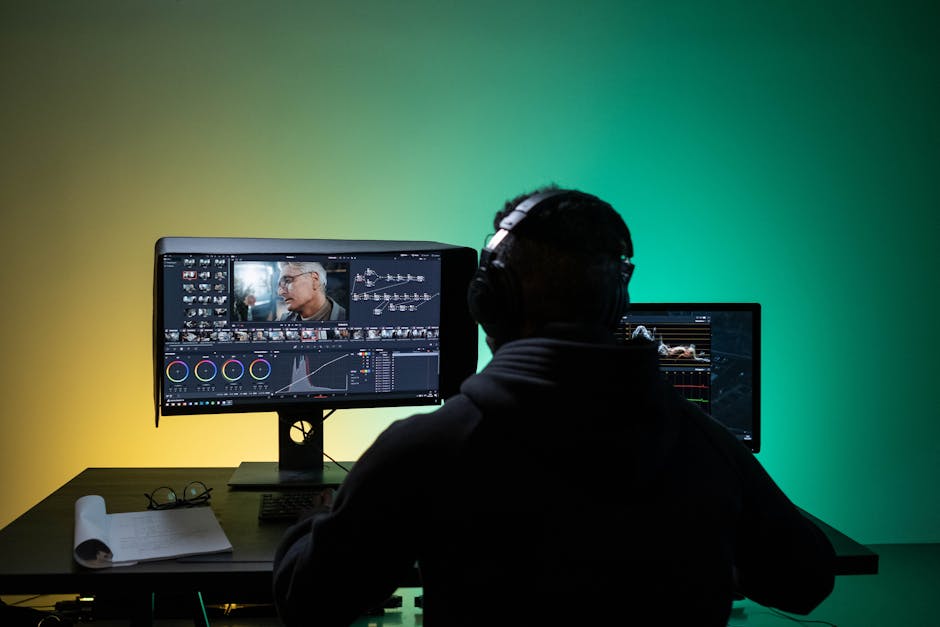
Sometimes your files are fine. Your NLE timeline is pristine. The export looks great on your phone. But the moment you hit play in your editing suite, the audio lags behind the video by a quarter-second. This is hardware latency, and it usually stems from an overtaxed audio interface buffer or Bluetooth interference.
If you are monitoring audio through wireless headphones or cheap Bluetooth earbuds, stop immediately. Bluetooth introduces inherent codec latency that fluctuates depending on CPU load. Switch to wired studio monitors or a direct-plug headphone jack. Next, dive into your digital audio workstation (DAW) or video editor preferences and lower your audio buffer size from 512 samples down to 128 or 64 samples. Just keep an eye on your CPU usage; if your computer starts stuttering like a skipping CD, bump the buffer back up slightly until you hit the sweet spot.
For deep dives into professional multi-track alignment techniques, check out the official Adobe Premiere Pro audio sync guide for more granular troubleshooting tricks.
Frequently Asked Questions
Why does my audio go out of sync only after I export the video?
This is a classic symptom of sample rate mismatch or dropped frames during rendering. If your sequence is set to 44.1kHz audio, but your source files were recorded at 48kHz, the export engine has to resample the audio on the fly. This often introduces fractional timing errors that compound over the length of the video. Always match your sequence settings to your primary audio source before you start editing.
Can variable frame rate (VFR) footage be fixed without transcoding?
Technically, some modern editing applications have built-in mechanisms to handle VFR, but they are notoriously unreliable for long-form content. Transcoding via a tool like Handbrake to a constant frame rate is the only bulletproof way to prevent random desyncing during heavy edits.
Why do my Bluetooth headphones make video editing impossible?
Bluetooth audio relies on lossy compression and wireless transmission protocols (like AAC or SBC) that inherently introduce a latency delay ranging from 100 milliseconds to over half a second. Video editing requires real-time feedback. Always use wired headphones or a direct-wired audio interface when syncing dialogue.
What is the fastest way to sync audio when the waveform is too messy?
If automated sync tools fail because of loud background noise, rely on visual cues. Look for a sharp mouth movement (like a wide vowel or a hard consonant) or use a physical reference point like a finger snap at the start of the take. Match the peak of the audio waveform to that exact frame, and lock your tracks.